

Website & App Insights Basic Overview
What's on this page
About Website & App Insights
The Website & App Insights project is a premier digital experience tool designed to analyze the full breadth of your customers’ experience with your organization’s online presence. This project can be used to collect feedback from visitors, study the performance of your websites or apps, as well as observe the behavior your visitors display while browsing. By combining a rich mix of operational, experience, and behavioral data, you can optimize your digital presence.
With all of that said, let’s dive into the components that make Website & App Insights work. To do this, it helps to split Website & App Insights into two areas: user feedback collection and user experience analysis.
User Feedback Collection
You can use Website & App Insights to collect feedback from visitors to your website or app. The 2 key building blocks of this kind of program are called creatives and intercepts.
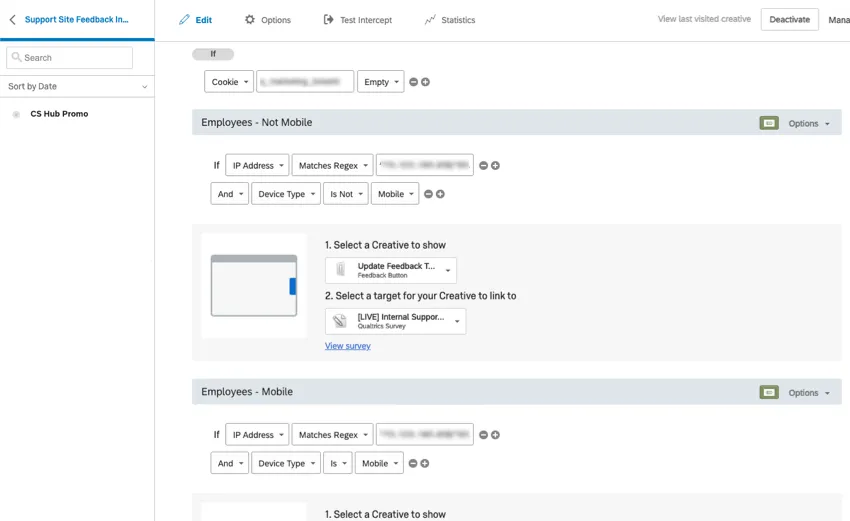
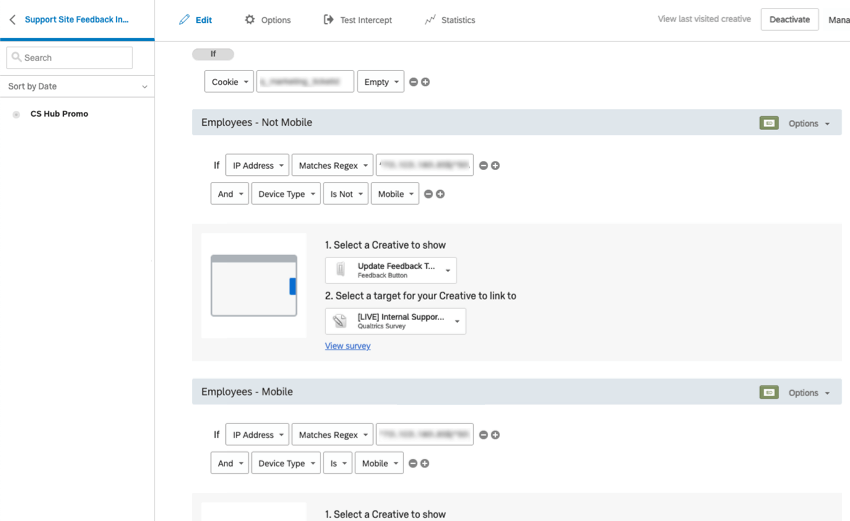
Intercepts can be thought of as the rules that determine when and how your project will be displayed on a website or an app. For example, you can show different elements depending on user information or portions of the URL. The intercept is where you define how your target survey, creative(s), and the conditions of a visitor’s session come together. See more on how to make an intercept.
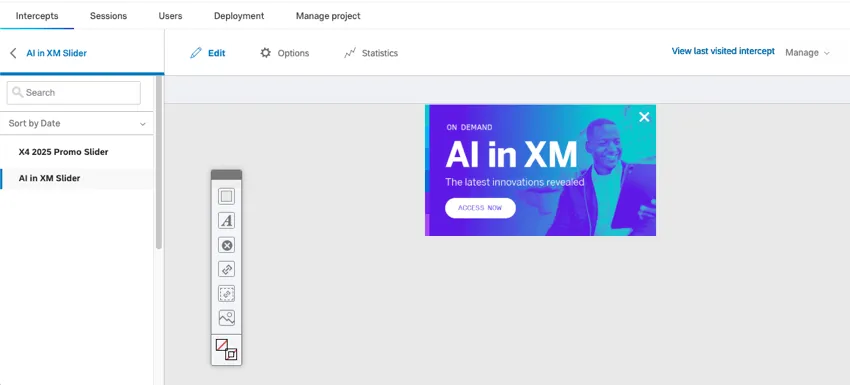
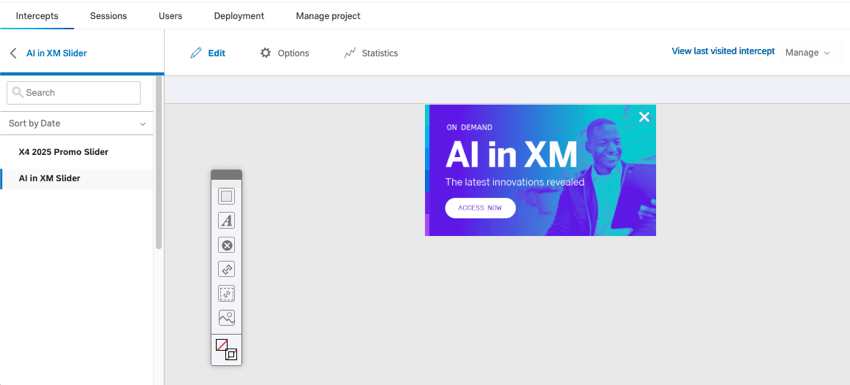
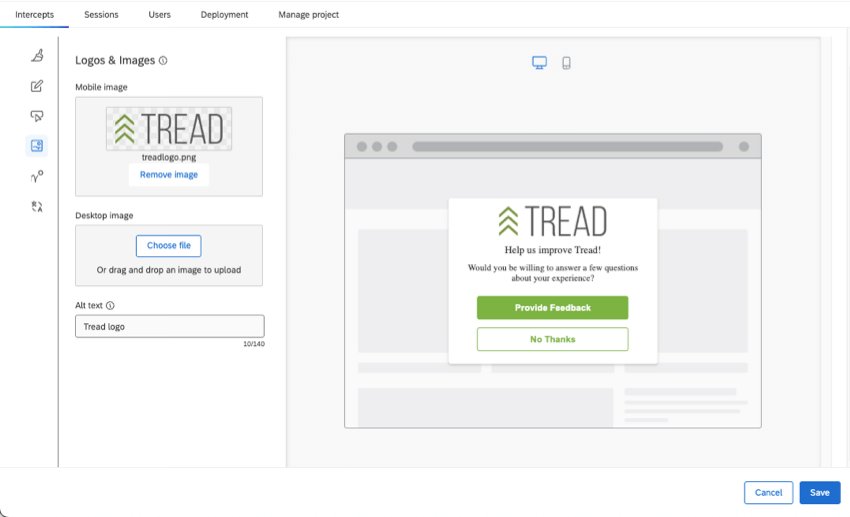
Creatives can be thought of as the visual element of your Website & App Insights project; for example, a banner, a window that opens over a webpage, or even a link. Creatives let you reach your customers while aligning with your organization’s personal style. See more on how to make a creative.
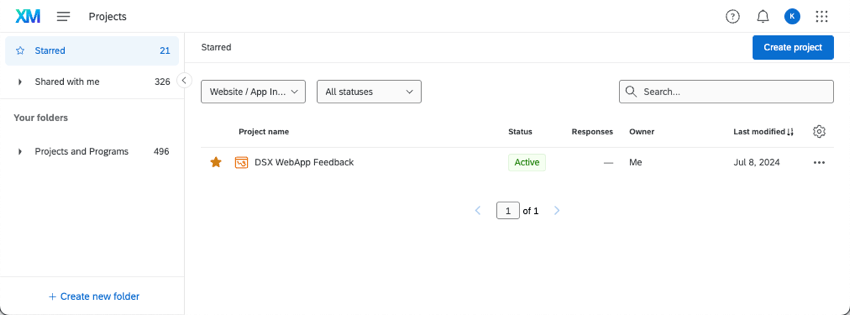
No matter what you plan to do with your digital research, you need to create a Website & App Insights project. Projects are how you group your creatives, intercepts, and session analyses. By having all of a website or app’s assets in one place, you can more easily control how they interact, as well as implement them all through one shared deployment code.
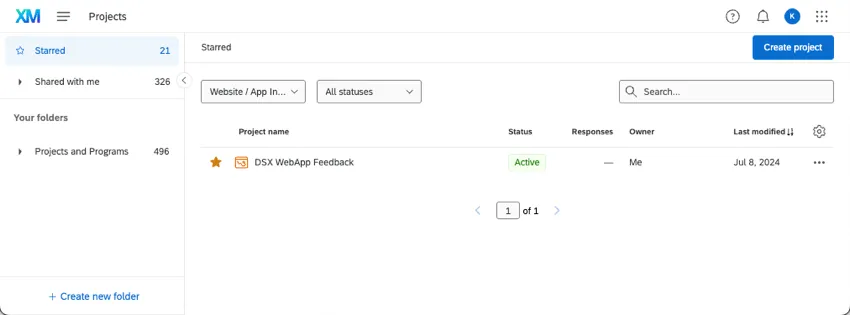
Every project can contain more than one creative and more than one intercept. The session replay analysis is shared amongst the entire project, so you can see behavioral tracking for your chosen website or app in one place.
Guided Setups
Guided setups provide an alternative user feedback collection experience. We highly recommend selecting one of our guided intercepts, especially if you are new to Website & App Insights, since they have a faster and easier setup. Create a great website or app experience complete with mobile-friendly views, website targeting, and translations, all in the same editor.
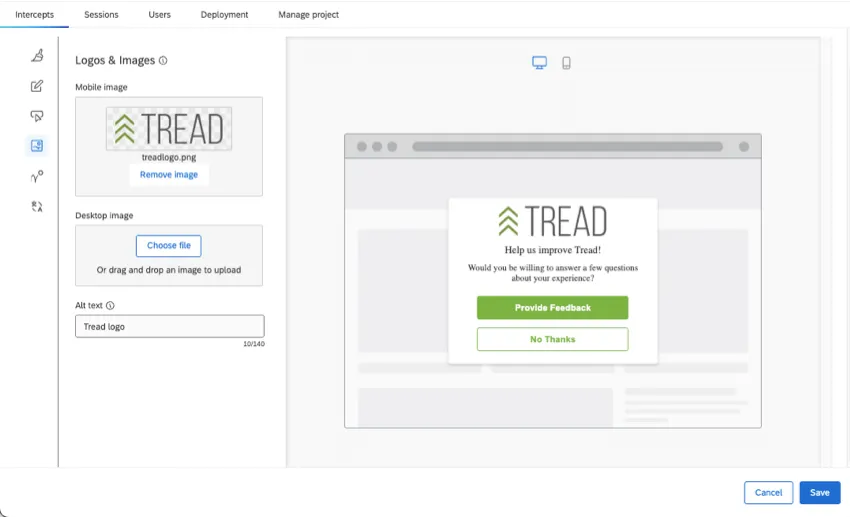
For step-by-step details, see Creating Guided Intercepts.
User Experience Analysis
At the heart of digital experience analysis are two advanced analyses: session replay capture and frustration detection.
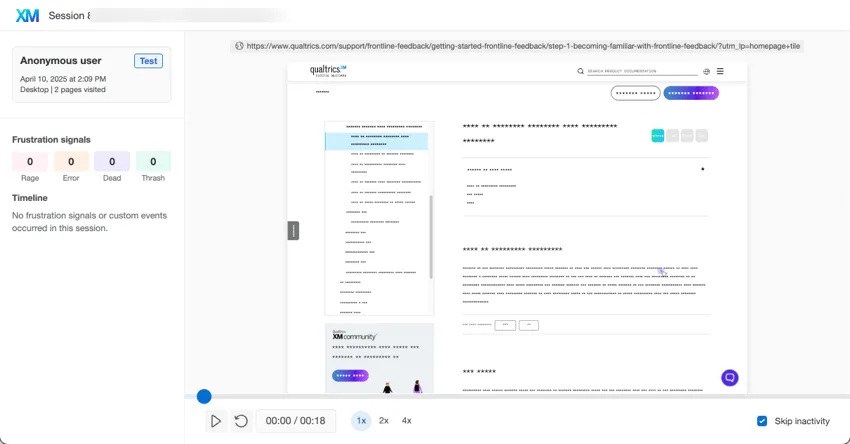
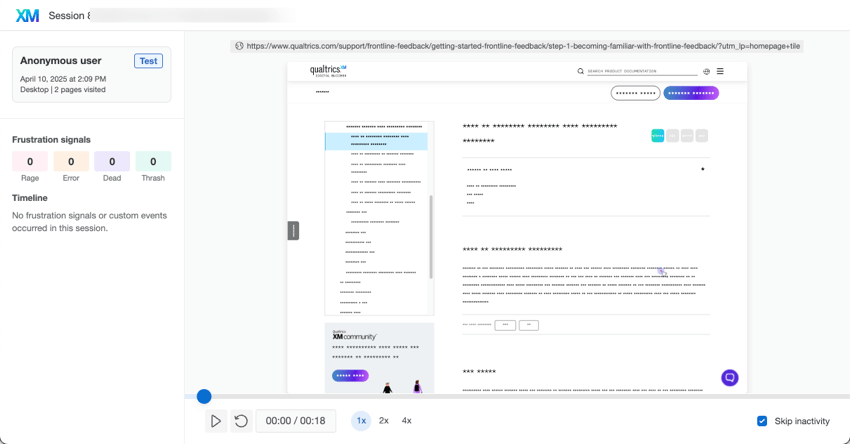
Session replay captures the journey your website visitors take throughout their visit, or “session.” In addition to seeing general operational data, such as browser and device, you can also see how the user clicked or interacted with different elements of your website.
Within session replays, we detect frustration signals. Frustration signals help you identify the highest points of user friction across your website by highlighting moments when users exhibit frustration. Signs of frustration include behaviors like mouse thrashing and clicking inactive or incorrect links.
Once this data is collected, you can build analyses tailored to digital experience in Digital Assist, or you can report on this data in a dashboard, giving you the reporting and sharing power of the CX Dashboards platform.
Getting Your Website & App Insights Project Started
When you create a Website & App Insights project, you have a few options of how you can start setting up.
- Follow a guided setup of feedback collection, with Qualtrics showing you every step you need to complete. Rather than having to create separate intercepts and creatives, both elements are combined into one easy-to-configure process.
- Dive into a more complex setup for feedback collection by customizing your own standalone creatives and intercepts.
- Start with session replay instead, preparing your project for site visitor analysis.
For benefits of each of these paths and illustrated step-by-steps, see Creating a Website & App Insights Project.
Navigating a Website & App Insights Project
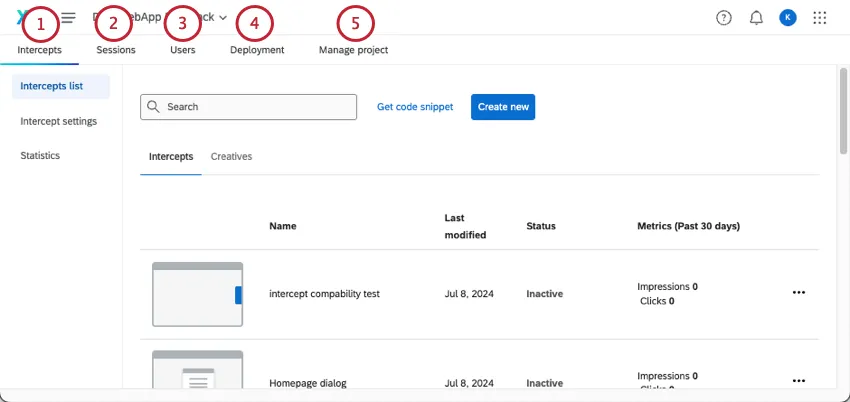
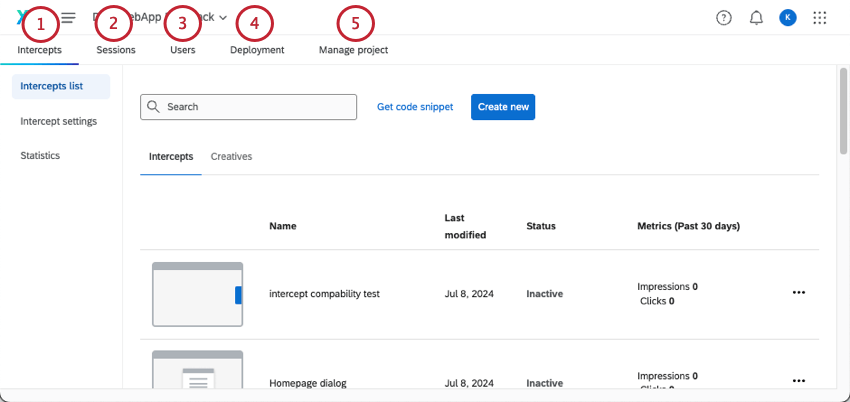
Your Website & App Insights project is organized naturally by the parts of your digital experience you want to set up.
Key Terms
- Projects: How you group creatives, intercepts, and session analyses together. We generally recommend creating one project per website or app you plan to implement Website & App Insights on. By having all of a website or app’s assets in one place, you can more easily control how they interact, as well as implement them all through one shared deployment code.
- Creatives: The visual component displayed on the site in order to encourage visitors to provide feedback, or inform them of something. Comes in the form of banners, windows, feedback buttons, and more.
- Intercepts: Intercepts are used to set the conditions that determine how and when your creative is displayed. Each intercept will contain specific conditions (logic) under which the creative should appear, the creative that should appear, and where the visitor should be redirected if they click the creative (target).
- Guided intercept: Also called “guided setup.” A user-friendly approach that combines the visual and logistic elements of intercepts and creatives into one faster setup. These include easy-to-translate, accessible options like the responsive dialog, feedback button, templated embedded feedback, and embedded app feedback.
- Standalone: Creatives and intercepts that are “standalone” must be configured separately and pieced together.
- Targets: Where the links on your creative should redirect visitors. Targets can also be embedded, meaning the survey or page content will appear directly in your creative.
- Bookmarklet: A bookmarklet is a tool that allows you to test your Intercept. By dragging it to your bookmarks, you can visit any page you want and click it to activate a preview of your Intercept.
- Session replay: The ability to capture the journey your website and app visitors take throughout their visit, or “session.”
- Frustration signals: Behaviors that display site and app visitor frustration, such as mouse thrashing, clicking dead links, or clicking links that lead to errors.
- Deployment Code: The snippet of code that needs to be placed on your site in order to run your intercept. There is one snippet of deployment code per project.
Foundational Digital vs. Frontline Digital
This section explains the differences in the features accessible with Foundational Digital versus Frontline Digital.
Qtip: If you don’t currently have Frontline Digital capabilities but would like to gain access, reach out to your Account Executive. If you have questions about what’s included in your license, contact Account Services.

| Foundational Digital / Strategic Research | Frontline Digital | |
|---|---|---|
| Channels | Website only | Website and App |
| Responses or Interactions | Up to 1,000 per year | No limits; purchase the volume you intend to utilize. You can add more at additional cost. Reach out to your Account Executive for more details. |
| Intercept Volume | 1,000 projects, 4 intercepts | 1,000 projects, 100 intercepts |
| Targeting Logic | Targeting conditions for device type, user agent, browser, current URL, page count, and cookie | Full set of targeting conditions, including JavaScript Expression and exit intent |
| Creative Types | Responsive dialog and feedback button | All creative types |
| Extensions | No | Yes |
| Embedded Data | Embedded data for device type, user agent, browser, current URL, page count, and cookie | Full set of embedded data fields |
Qtip: Inactive intercepts count towards the total intercept volume allowed.
FAQs
How can I stay up to date on new Qualtrics features?
How can I stay up to date on new Qualtrics features?
To access these release notes, you need an XM Community account. These accounts are free for any users with a Qualtrics account. This support page contains information for how to register an XM Community account.
Once you're logged into the XM Community, head over to the Weekly Product Updates Introduction Post. This post contains all the information you need to get started with subscribing to product updates!
That's great! Thank you for your feedback!
Thank you for your feedback!